Deploy with Microsoft Intune
Deploy NVM for Windows with the pre-built files found in the NVM for Windows download in the customer portal. No file server required. The installer runs as System and accepts the EULA automatically (ACCEPT_EULA=1).
| File | Purpose |
|---|---|
nvm-windows-<version>-certified-amd64.intunewin | Upload to Intune as the Win32 app package |
nvm-windows-<version>-certified-amd64.intune.json | Reference for install commands, detection rules, return codes, and MSI metadata |
Complete Prerequisites first. After installation, continue to Configure policies.
1. Upload the app
In the Microsoft Intune admin center:
- Go to Apps > All apps > Create.
- Select Windows app (Win32).
- Select the app package file and upload
nvm-windows-<version>-certified-amd64.intunewinfrom your deployment pack. - Wait for Intune to extract and validate the package.
2. App information
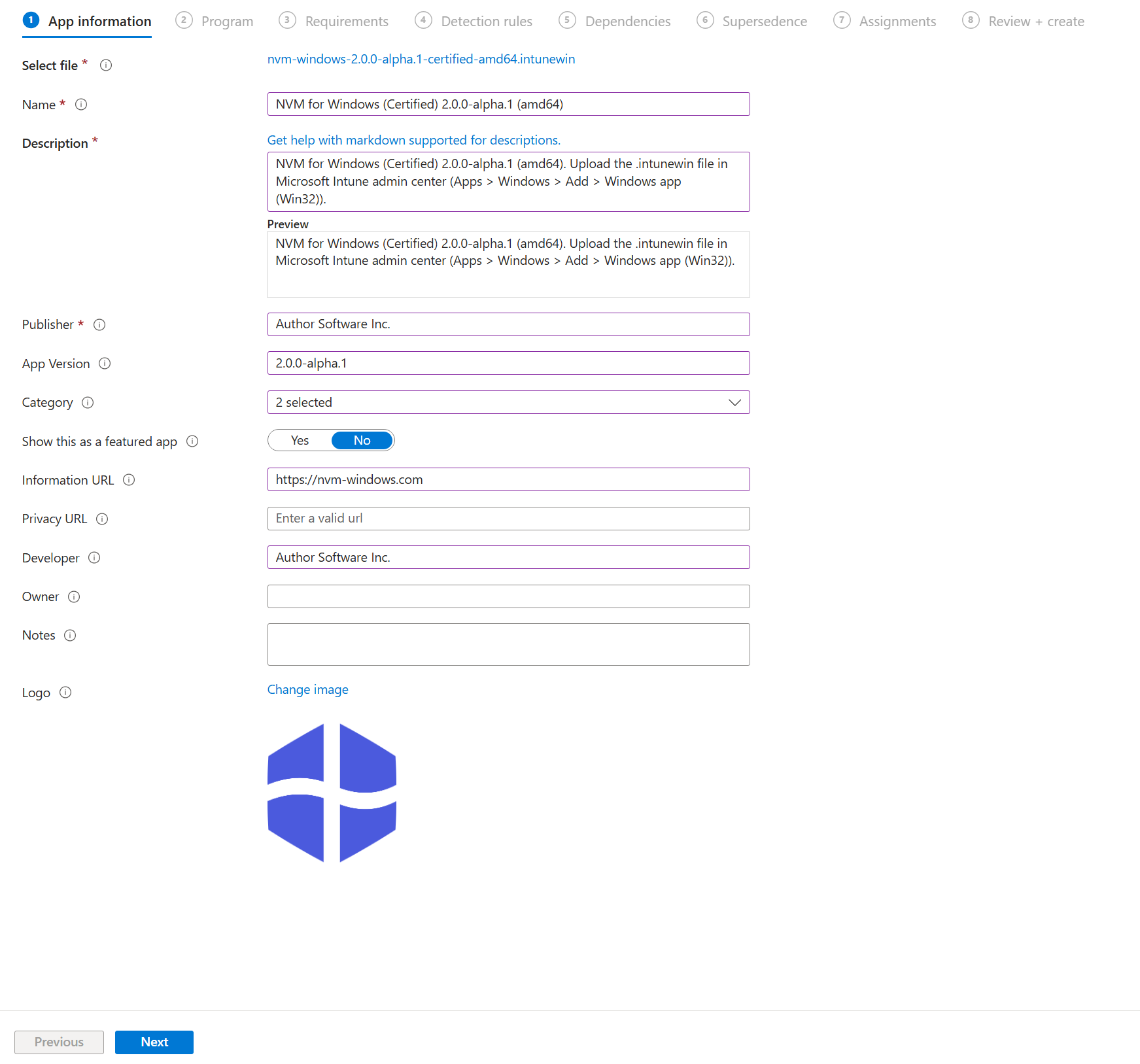
Use the values from the companion .intune.json file:
| Field | Value |
|---|---|
| Name | NVM for Windows (Certified) |
| Publisher | Author Software Inc. |
| Version | <version> |
| Description | Certified build for amd64. See .intune.json for the exact string shipped with your package. |
3. Program settings
| Setting | Value |
|---|---|
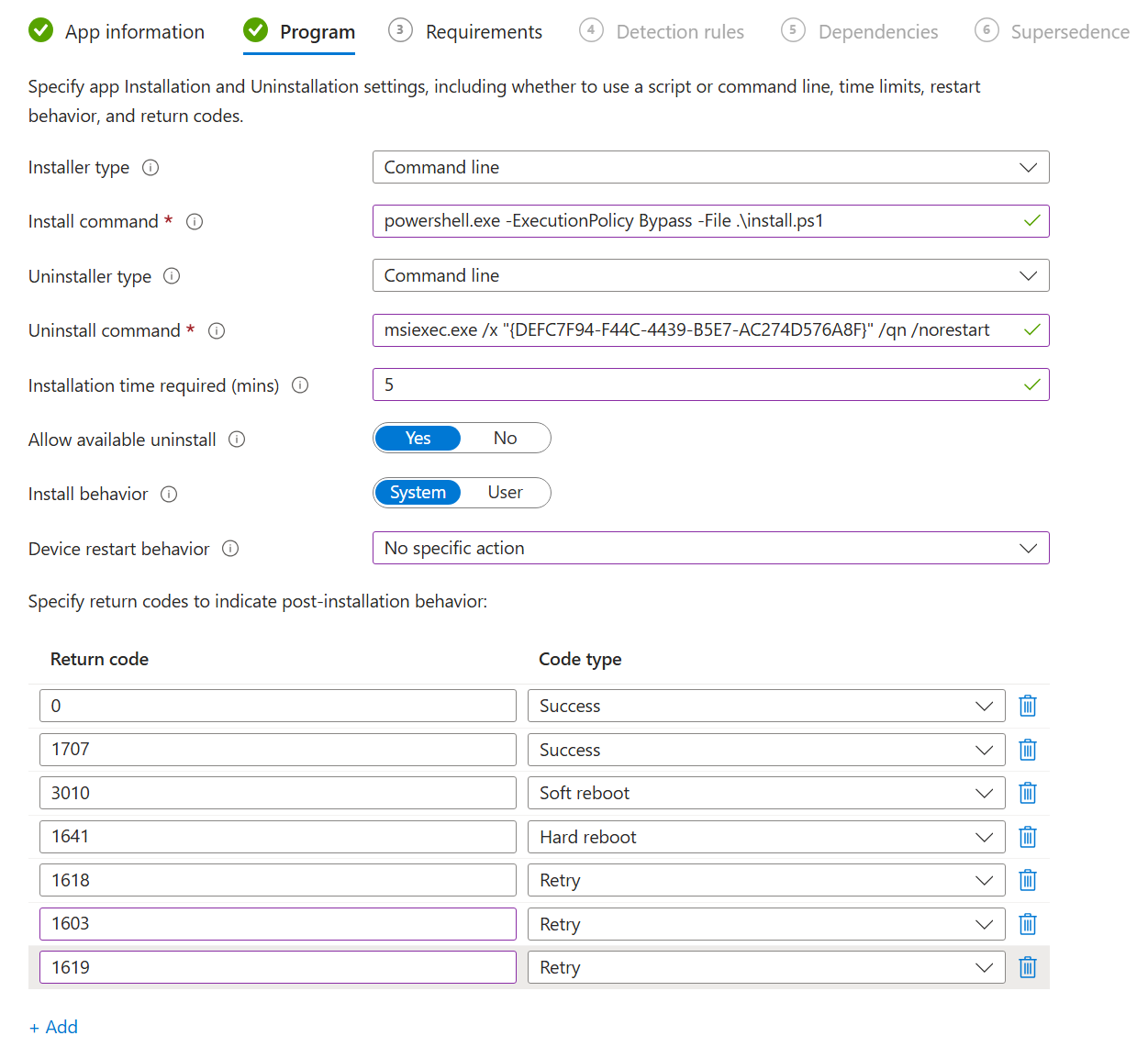
| Install command | powershell.exe -ExecutionPolicy Bypass -File .\install.ps1 |
| Uninstall command | msiexec.exe /x "{DEFC7F94-F44C-4439-B5E7-AC274D576A8F}" /qn /norestart |
| Install behavior | System |
| Device restart behavior | No specific action (suppress) |
The uninstall command product code ({DEFC7F94-F44C-4439-B5E7-AC274D576A8F}) and other MSI metadata are listed under msiInformation in your .intune.json. Use the values from the manifest that ships with your build if they differ.
Add the return codes from .intune.json:
| Code | Type |
|---|---|
0 | Success |
1707 | Success |
3010 | Soft reboot |
1603 | Retry |
1618 | Retry |
1619 | Retry |
4. Requirements
| Setting | Recommendation |
|---|---|
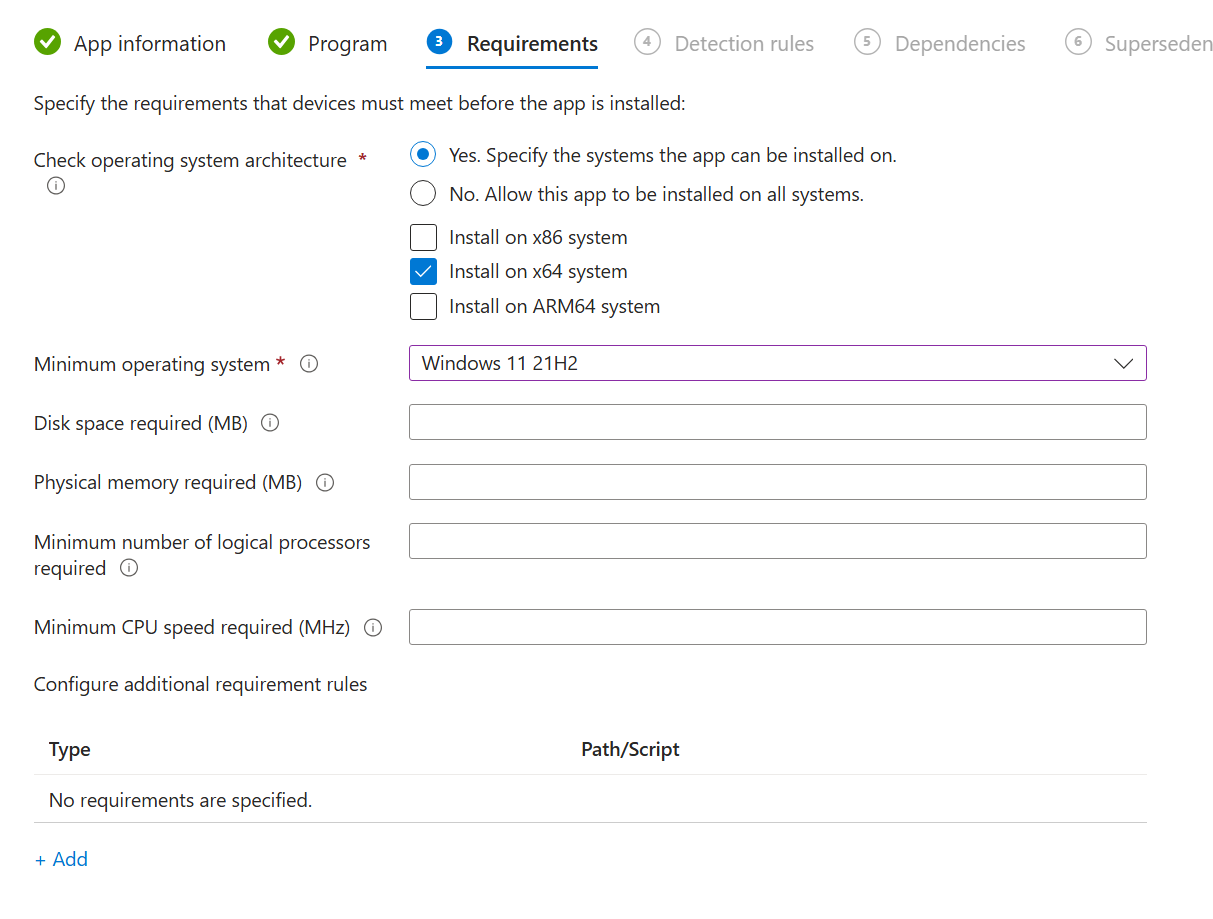
| Operating system architecture | x64 or ARM64 |
| Minimum OS | Windows 11 21H2 |
Only select x64 or ARM64 for the operating system architecture. If you need both options, create separate Intune applications for each architecture. There is a dedicated .intunewin installer for each architecture.
5. Detection rules
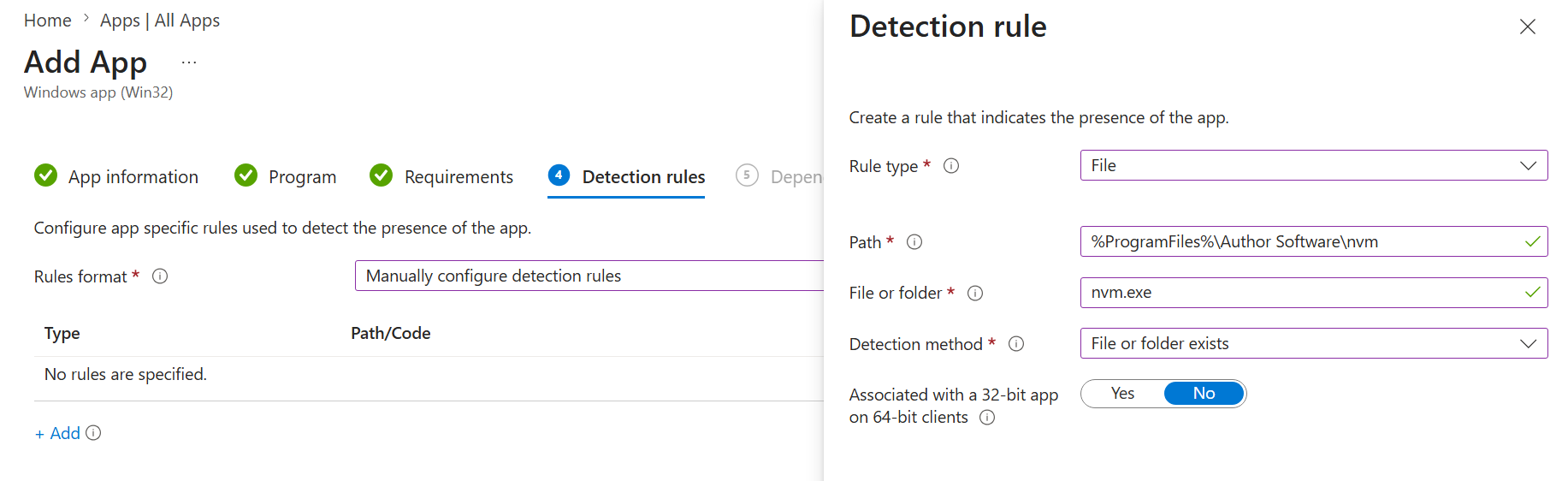
Add a File detection rule:
| Setting | Value |
|---|---|
| Path | %ProgramFiles%\Author Software\nvm |
| File or folder | nvm.exe |
| Detection method | File or folder exists |
| Associated with a 32-bit app on 64-bit clients | No |
6. Dependencies
Unnecessary (skip).
7. Supercedence
Unnecessary (skip) when deploying the first time. When deploying an update, configure Supersedence on this Win32 app so the new package replaces the previous one.
If your organization used NVM for Windows v1.1.7+, v2 will auto-migrate without supercedence. Versions below 1.1.7 should be uninstalled, but users will lose their existing installations and settings.
If you created a custom Intune application from v1.1.7+, it needs to be superceded. See the maintenance guide for details.
8. Assignments
- Complete the wizard and Assign the app to device or user groups.
- Confirm deployment status under Apps > Monitor > App install status.
- Install logs are written to
%ProgramData%\Author\nvm-certified-install.logon the target device.