NVM Firewall
The NVM Firewall provides protections against unapproved Node.js version downloads and invocations, dependency installations, and global module installation/execution.
The firewall is only available in shim mode. Link mode and a package manager that is not proxied skip firewall checks.
Protections
The NVM Firewall applies your rules to Node.js downloads and execution via module allow/deny and trust lists.
| Protection | Community Builds | Certified Builds | +Governance Add-on |
|---|---|---|---|
Block Unapproved Node.js Installationsnvm install ... | ❌ | ❌ | ✓ |
Block Unapproved Node.js Invocationsnode ... | ❌ | ❌ | ✓ |
Block Unapproved Dependency Installationsnpm install | ❌ | ❌ | ✓ |
Block Unapproved Global Module Installationsnpm install -g | ❌ | ❌ | ✓ |
| Block Untrusted Global Module Changes Block untrusted modules from self-updating | ✓ | ✓ | ✓ |
Firewall protections can be applied with the nvm firewall command, but are most commonly configured in group policies and profiles by system administrators. This is how entire fleets of computers can benefit from firewall protections.
What's not protected by the firewall
- The firewall is not the Malicious Package Blocker. That uses a verified public OpenSSF feed of known-malicious names.
- The firewall is not the Author Mirror. That mirror is a protected download host.
How to configure protections
Block unapproved Node.js installations
With Governance, nvm install can refuse a Node.js version that is not on your allow list, or that matches a deny rule. Lists live under the Policies hive and are ignored without a Governance license. Rules include:
- Exact versions like
20.0.1 - Wildcards like
20.x - Negation like
NOT 24.x - Aliases like
EOL(governance only)
Aliases such as EOL are only honored by the Author Mirror, which dynamically identifies the appropriate version range and applies it when a download is served.
Example
nvm firewall allow version 20.x 22.x
nvm firewall deny version 18.x
These commands write machine policy and require elevation. See Governance registry keys.
Block unapproved Node.js invocations
The same version lists that block installations also gate use of Node.js on Certified Builds.
nvm use and the node shim refuse to use a version that the policy blocks (NVM4411).
A version already installed on disk does not bypass this.
Example
nvm firewall allow version 22.x
nvm firewall deny version 16.x
node -v                            # fails when the active version is denied
Block unapproved dependency installations
With Governance, Certified Builds can allow or deny package installs into a project (npm install, pnpm / yarn / vlt equivalents, and similar proxied commands) using Policies-hive lists. Without Governance those Policies lists are ignored.
With no module rules configured, every package is allowed.
Example
nvm firewall allow module eslint left-pad
nvm firewall deny module evil-package
Requires elevation on Certified Builds or application through governance policies. Raw policy key names are in the Registry Policy Reference.
Bare install (npm install with no package names)
For expandable install commands (npm install, pnpm install, yarn, and similar) with no package names on the command line, NVM resolves modules from the nearest project manifest and applies your local allow/deny rules to that set:
- Default: if a lockfile exists for the active package manager, use the packages listed in that lockfile.
- Otherwise: use the dependencies declared in
package.json.
To force package.json only (ignore lockfiles), set Skip lockfile for module firewall in policy — see Governance keys.
Block unapproved global module installations
Global installs (npm install -g, and equivalents) use a separate approval list from project installs.
Pass --global so the rule applies to that list.
Example
nvm firewall allow module --global typescript
nvm firewall deny module --global unwanted-cli
With no global rules configured, every global package is allowed. Raw policy key names are in the Registry Policy Reference.
Block untrusted global module changes
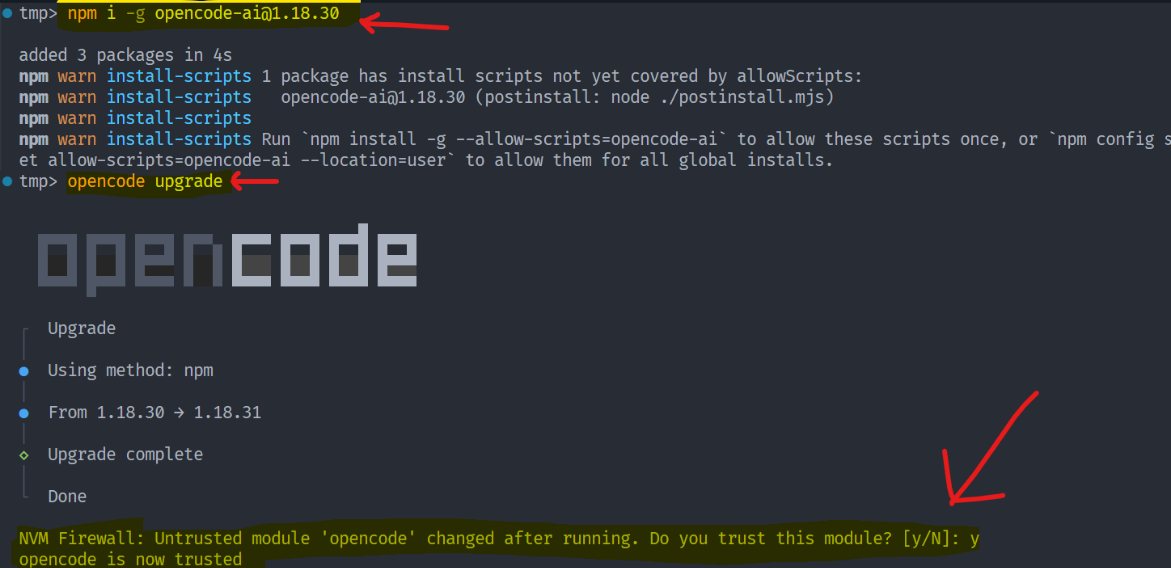
Global CLIs often self-update in place. When a launcher on disk changes and the module is not trusted, NVM for Windows can:
prompt(default) — ask in the console when the terminal is in the foreground; otherwise show a native notification with Trust / Cancelallow— auto-reshim with a quiet notificationdeny— skip the prompt and skip auto-reshim
A timed-out notification posts a silent follow-up that stays in Notification Center.
By default only bundled package managers are trusted (npm, npx, yarn, yarnpkg, corepack, pnpm, and vlt).
Trusting a module re-signs its launchers; a separate nvm reshim is not required.
nvm reshim alone does not keep trust after the next self-update.
Every untrusted-module change is audited as NVM4406 (info).
This protection is available on Community Builds and enforceable on Certified Builds.
Example
nvm firewall trust module opencode
nvm firewall distrust module opencode
nvm config set untrusted_module_handler_action=prompt
nvm config set untrusted_module_handler_action=allow
nvm config set untrusted_module_handler_action=deny
Use --machine to write to machine preferences instead of user preferences. This will apply trust to all users of a machine.
Example Prompt
Defaults
| Behavior | Default |
|---|---|
| Trusted modules (empty trust list) | Bundled package managers only (npm, npx, yarn, yarnpkg, corepack, pnpm, vlt) |
| Project / global module allow lists (empty) | Allow all packages |
| Untrusted module action | prompt — see example above |
| Bare-install lockfile use | Prefer lockfile when present — see Bare install |
Raw registry and preference names for these defaults are in the Registry Policy Reference.
Limits
Human-readable firewall list output shows at most 20 entries, then and N more when additional rules exist (--json is uncapped).